Everything you need for a professional logo and printed materials
Precise settings in a tool you can pick up in minutes.
Design
Symbols, shapes and your name
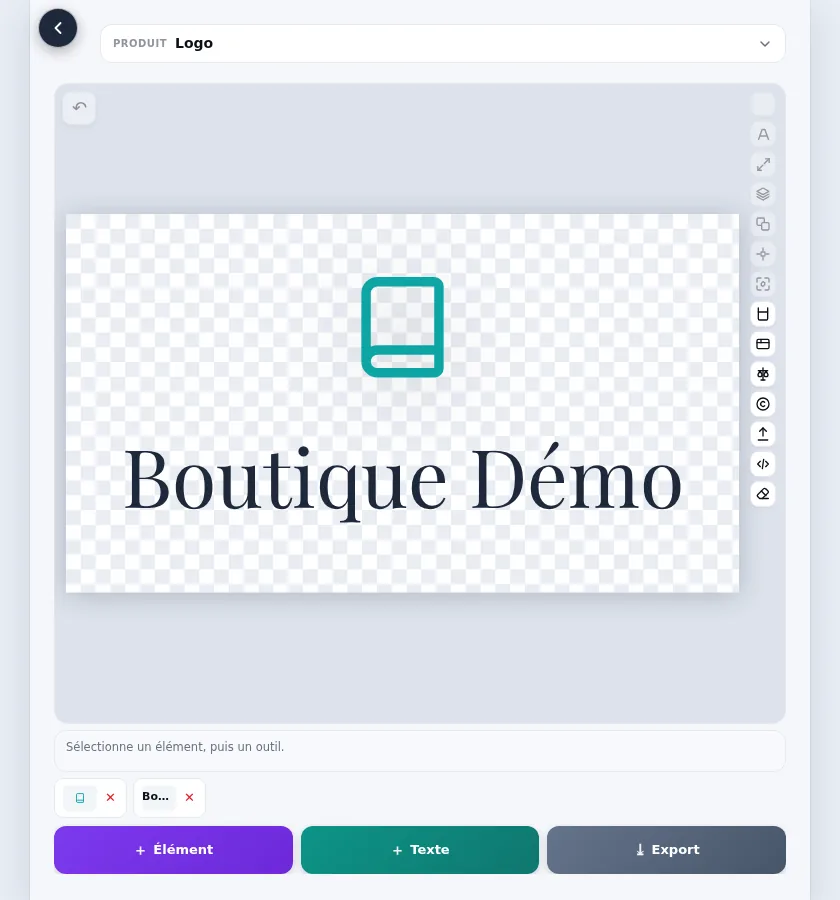
Combine your business name with a symbol chosen from more than 6,000, with shapes or with a QR code linking to a web page or a digital business card. Each element can be selected, moved and adjusted separately: colour, gradient, opacity, depth effect, rotation, flip and layer order.
Text
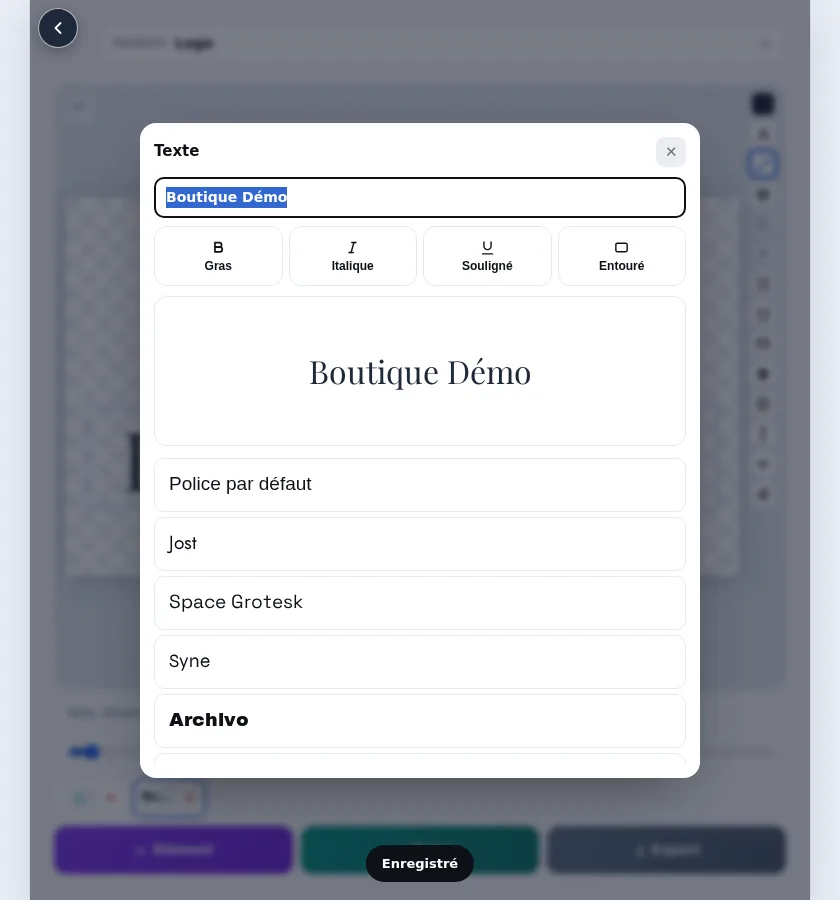
38 fonts and text styles
Choose from 38 fonts, make your text bold, italic, underlined or framed, and see the result before you confirm.
Sizes
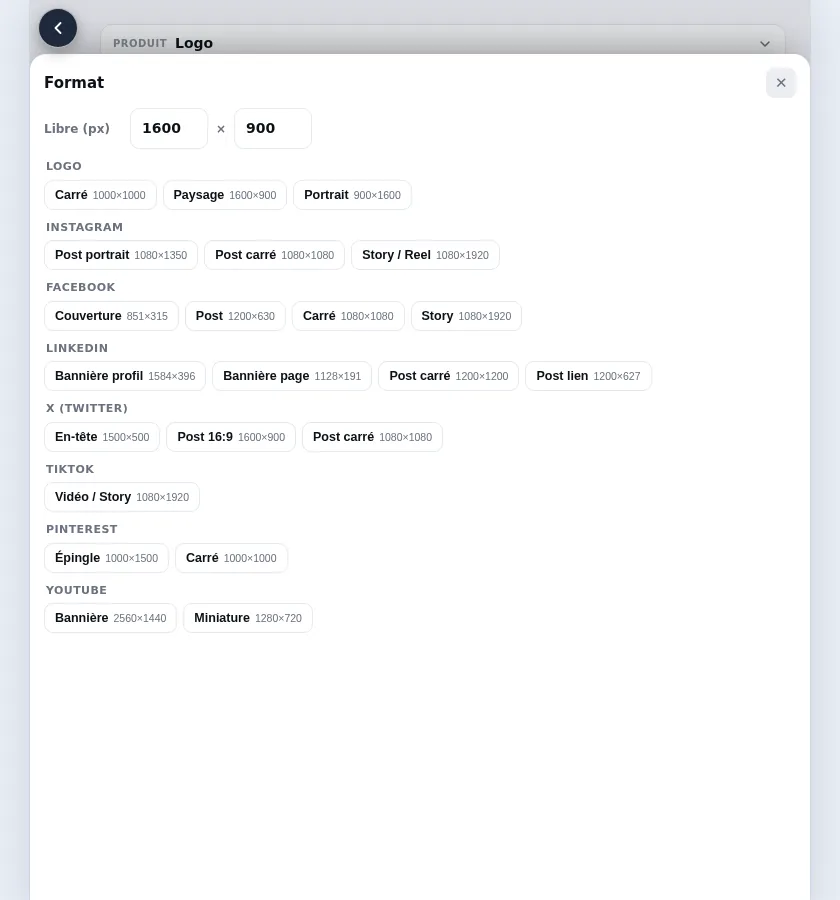
The right size for every use
Square, landscape or portrait formats, custom pixel dimensions, and ready-made sizes for Instagram, Facebook, LinkedIn, X, TikTok, Pinterest and YouTube.
Export
Files that actually work
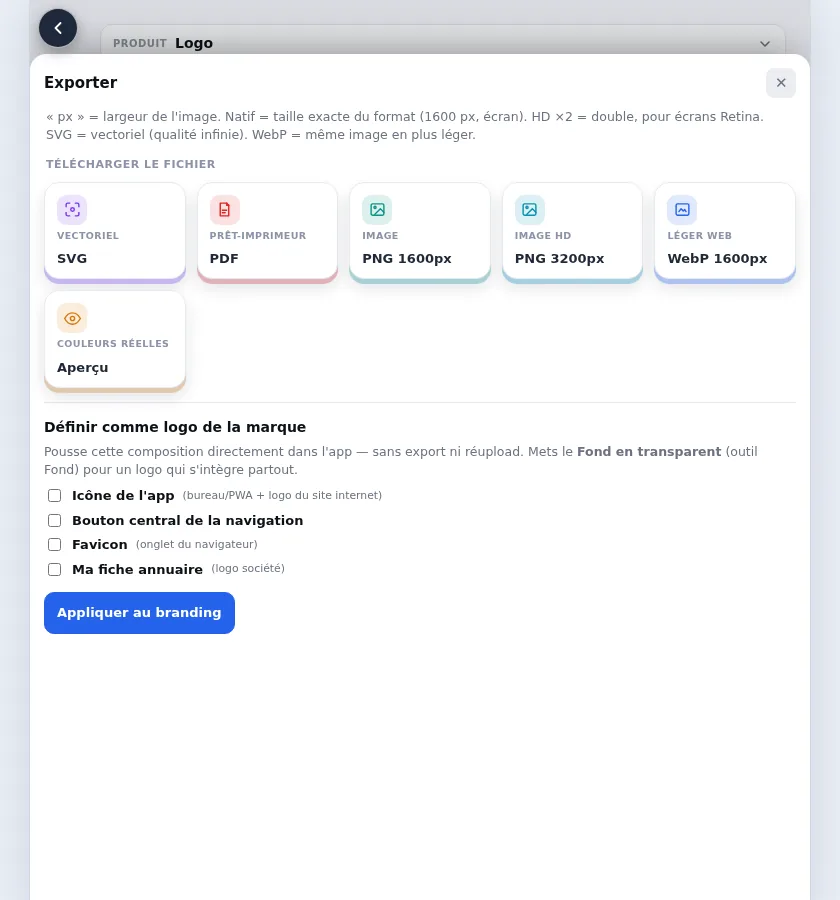
Vector SVG, sharp at any size; PNG at 1,600 or 3,200 pixels; lightweight WebP for the web; and a PDF in print colours (CMYK), with the FOGRA profile that matches the paper and a preview of how the colours will look on paper.
On your phone
Just as easy on a touch screen
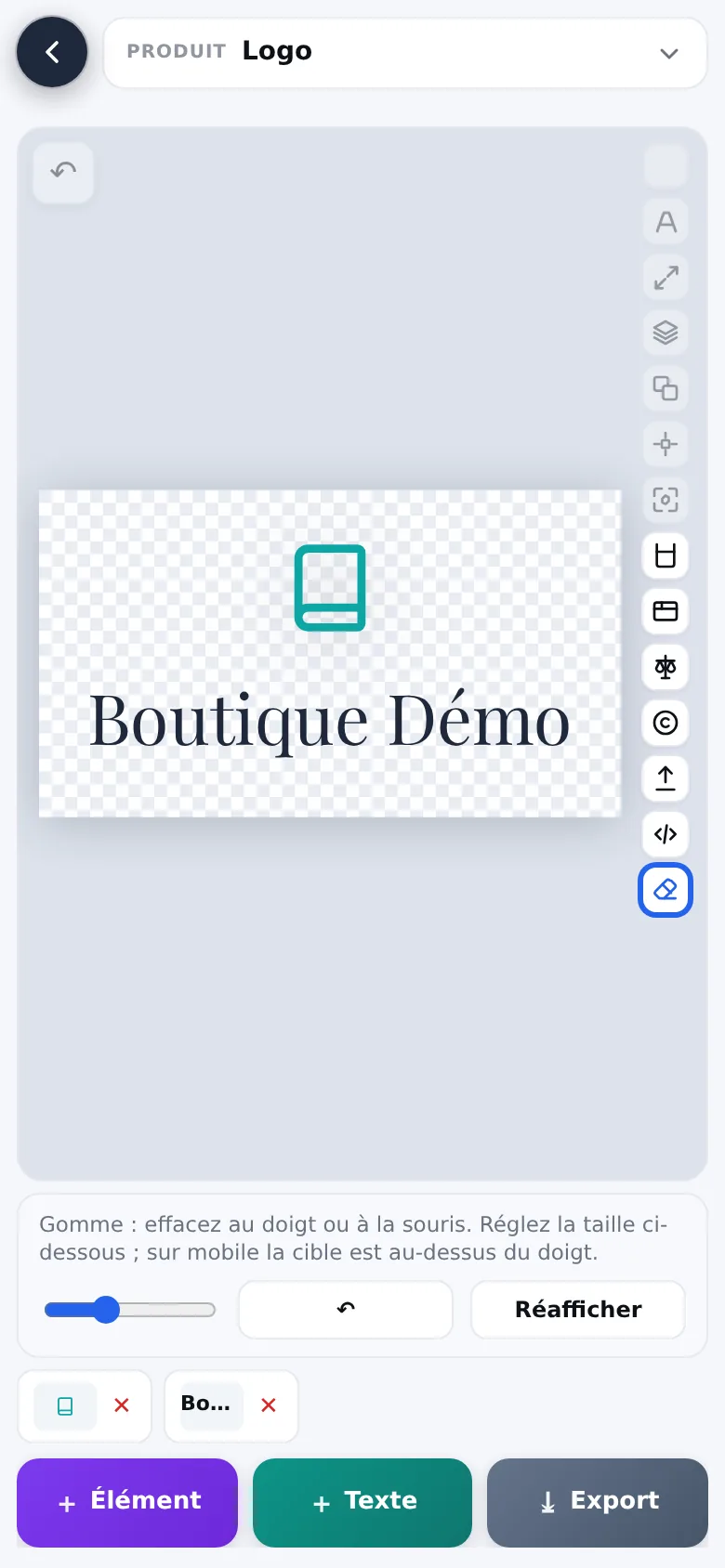
The editor is made for touch screens: tap an element, adjust it, and erase part of a symbol with the eraser, whose size you can set.
Import
Use an existing logo
Import an SVG file: it stays editable element by element. The tool converts a DXF file to SVG, and you can also paste SVG code or import a PDF layout, each page becoming an image. A PNG, JPG or WebP image is imported as an image, without being turned into a vector drawing.